


The Document Picture-in-Picture API arrives in Firefox 151 and opens floating windows with a full DOM
A native feature that places arbitrary HTML, CSS, and JavaScript into a persistent floating window already runs in Chrome and now in Firefox. See how it works and where not to use it.

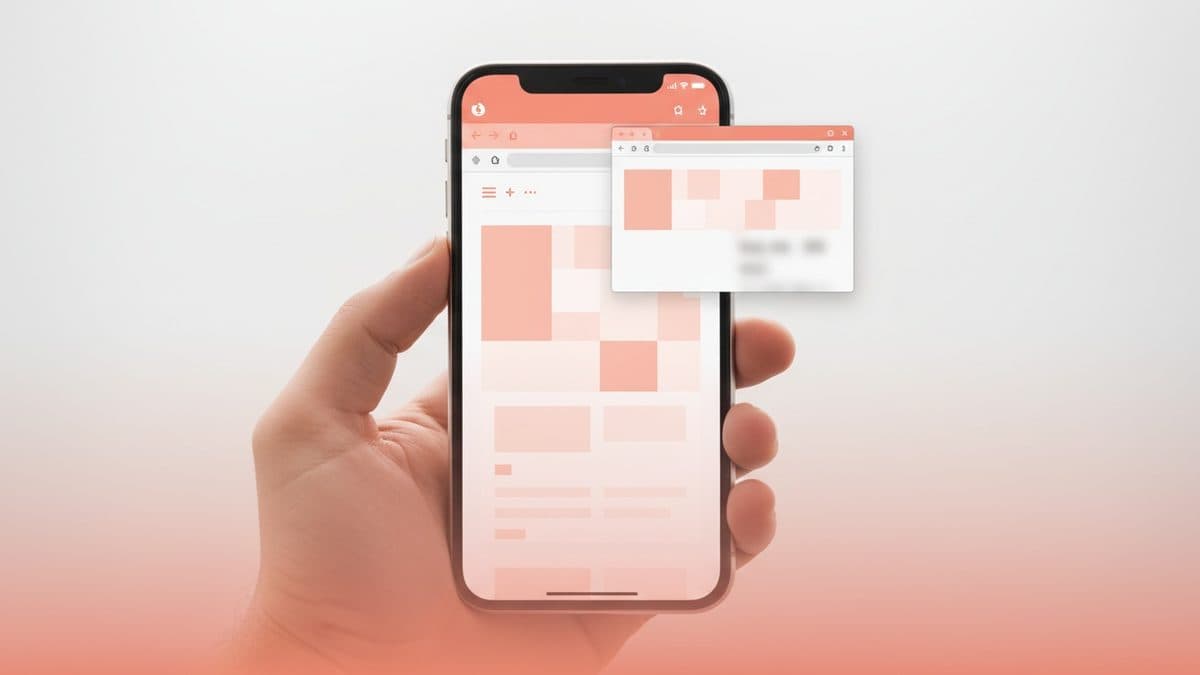
The Picture-in-Picture API that most devs know does just one thing: push a <video> into a resizable little window that stays visible when you switch tabs or system windows. The Document Picture-in-Picture API (DPIP) is a different story. As Daniel Schwarz explains in a tutorial on CSS-Tricks, it lets you put anything into that floating window: arbitrary HTML, CSS, and JavaScript. In practice, you can think of it as a native mechanism for persistent web widgets.
The hook this time is that Firefox 151 now supports the API, which already ran in Chrome. Safari hasn't implemented it yet, which makes a support check mandatory before anything else. And an important warning: this is a desktop-only API, so don't count on it on mobile.
What it's for, in practice
The idea is to keep a piece of the interface always visible, even when the user leaves the source tab. The cases mentioned in the source are quite concrete: a floating stock ticker, a live chat conversation, a playlist, a to-do list, notes, and a spreadsheet. As Schwarz sums it up, "anything we want to keep on screen at all times."
The big difference from homemade solutions (an <iframe> positioned with position: fixed, or a window opened with window.open()) is that the DPIP window is a real browser window, managed by the OS, that doesn't disappear when the context switches. Content is brought into it by cloning nodes from the original document, which gives it direct access to the same HTML, CSS, and scripts already running on the page.
How it works under the hood
The entry point is window.documentPictureInPicture. First of all, you need to check for support, since you can't use @supports for this: the at-rule() that would let you query @media (display-mode: picture-in-picture) only exists in Chrome, and plans to standardize preludes seem to have been abandoned. The way out is the classic JS check:
if (!("documentPictureInPicture" in window)) {
  document.querySelector("button").remove();
} else {
  document.querySelector("button").addEventListener("click", async () => {
    /* ... */
  });
}
The window is created by requestWindow(), which returns a Promise (hence the async/await). While the browser prepares the window, you can get the rest ready:
const DPIP = await window.documentPictureInPicture.requestWindow({
  width: 600,
  height: 400,
  preferInitialWindowPlacement: true
});
A few options deserve attention. width and height work as expected, but Schwarz warns that you can't set one without the other, and if neither is defined the browser decides. preferInitialWindowPlacement: true stops the browser from remembering the window's position and size between openings, useful if you want it to always reappear in the same spot. disallowReturnToOpener: true (not used in the example), in turn, hides the "Back to tab" button.
One behavioral detail: a DPIP window automatically replaces the previous one, so there's no risk of accumulating several. But focus always shifts to the new window, which complicates turning the button into a toggle: closing it requires two clicks. The author prefers to simply let subsequent clicks recreate the window in its original position.
Cloning content and styles
Content enters the window via node cloning. For a single element, this is enough:
const stock = document.querySelector("#stock");
DPIP.document.body.append(stock.cloneNode(true));
The detail that usually catches first-time experimenters off guard: the DPIP window starts with no CSS at all. You need to bring the styles along. The tutorial does this by copying all the <style> and <link rel=stylesheet> elements from the original document. And here's a good performance practice: instead of appending each node individually (which would trigger several reflows), everything is assembled in an off-screen DocumentFragment and injected all at once, causing a single reflow.
const styles = document.querySelectorAll("style, [rel=stylesheet]");
const documentFragment = document.createDocumentFragment();
styles.forEach((element) =>
  documentFragment.append(element.cloneNode(true))
);
DPIP.document.head.append(documentFragment);
Schwarz notes that cloning everything is rarely necessary: adjust according to what the widget needs.
The trap of CSS out of context
This is the most valuable point in the article and the least obvious one. Taking a component out of its original context breaks CSS that depended on very specific selectors or on position in the tree. The recommendation is to write selectors that work in both contexts: the original document and the DPIP window.
To style the floating window specifically, there's the display-mode: picture-in-picture media query:
#stock {
  width: fit-content;
  border-radius: 0.7rem;

  @media (display-mode: picture-in-picture) {
    width: 100%;
    height: 100%;
    border-top-left-radius: 0;
    border-top-right-radius: 0;
  }
}
A gotcha not to confuse: the :picture-in-picture pseudo-class belongs to the regular PiP API (for video), not to DPIP. Anyone who needs conditional CSS in the document window uses the media query, not the pseudo-class.
When it's not worth it
The API is small and straightforward, but it has limits that define its use. It's desktop-only, so no widget critical for mobile should depend on it. Safari doesn't support it yet, which forces you to keep a fallback (in the example, the button simply disappears when documentPictureInPicture doesn't exist on window).
There's also an enter event, fired when the window opens, but the author himself admits he hasn't found a good use for it: just be careful not to confuse it with the enterpictureinpicture event from the video API.
To reproduce the full example, you need to run the CodePen demo in debug mode: DPIP doesn't work in nested browsing contexts, meaning inside an <iframe>. This, incidentally, reinforces the argument in favor of the API: it exists precisely to overcome the limitations of keeping persistent content through improvised means.
Translated from the Brazilian Portuguese original · Read the original
Mistral Large 4 now runs on Vercel's AI Gateway with a single API key
Vercel added Mistral Large 4 to the AI Gateway catalog: Mistral's multimodal model is now called through the same key and the same endpoints used for OpenAI, Anthropic, and other providers.
