
Figma Code Connect: how AI changes the bridge between design and engineering
The official documentation details how to connect Figma components to production code via MCP. The gain is real for Brazilian squads, but it depends on a mature design system and accessibility review.

The problem every product squad knows: the layout looks great in Figma, arrives with the dev team, and turns into something else. A button with different spacing, a component rebuilt from scratch, a focus state nobody mapped. Every handoff is a chance for rework. This is exactly the friction point that Code Connect, documented on Figma's developer portal, tries to tackle, and its logic changes with the entry of AI agents into the workflow.
What Code Connect Actually Does
Code Connect is, in the words of the documentation itself, "a bridge between your codebase and Figma's Dev Mode," linking the components that live in the repository to the components that live in the design file. It is not automatic code generation from nothing: it is explicit mapping. You tell Figma that that Button from the design system corresponds to this React (or SwiftUI, or Vue) component in your code.
The detail that changes the game in 2025 is where this mapping ends up. These connections feed the Figma MCP server, the server that exposes design system context to AI tools and code editors. In other words: when an AI agent is going to implement a screen, it no longer receives just a screenshot and a guess; it receives the reference to the production component that already exists. The documentation is direct in saying that the connections give agents "direct references to your real code."
In practice, this means the promise stops being "the AI writes your button" and becomes "the AI reuses the button your team has already approved." The difference is huge for consistency and accessibility, because the correct component already carries the states, labels, and keyboard behavior that someone validated once.
UI or CLI: Two Levels of Coupling
The documentation presents two paths, and the choice between them is a decision about team maturity, not taste.
| Aspect | Code Connect UI | Code Connect CLI |
|---|---|---|
| Where it runs | Inside Figma | Terminal, in the local repository |
| Ideal audience | Design + engineering, collaborative setup | Devs who want precision |
| Connection | GitHub or manual path | Template files published via figma connect |
| Snippet in Inspect | Not shown (AI preview only) | Shows real design system code |
| Maps props | No | Yes, Figma property → component API |
The UI path is "language-agnostic" and fast: you authorize Figma to access a GitHub repository (one repo per library file) or provide the paths manually. It works well to get started and for teams that use a different version control system.
The CLI, on the other hand, is where precision lives. It uses template files, a framework-agnostic format that Figma now recommends as the standard (the framework-specific parsers, the docs warn, "are no longer actively maintained"). With the CLI, Dev Mode displays the real snippet defined by your design system instead of generic autogenerated code, and Figma properties are mapped to the production API. A variant=primary in the design becomes the correct prop in the code.
A useful point the documentation notes: the two modes coexist. Connections made via CLI appear in the UI, but can only be edited via CLI. And the same design component can point to multiple implementations; the doc's example is a Button connected simultaneously to React, SwiftUI, Jetpack Compose, and Vue, each with its own path and instructions.
What This Replaces and What Breaks
What Code Connect replaces is Dev Mode's generic snippet and, above all, the AI agent's guesswork. What it does not replace is curation work. The docs are clear about this when describing the CLI implementation step: the devs who own the design system "should work with designers to map Figma properties." It is not a magic button; it is a contract maintained by two hands.
There are technical limits worth noting before selling the idea to the team:
- Feature available only on Organization and Enterprise plans, with a Full or Dev seat. It's not for just any account.
- GitHub Enterprise Server is not supported for connections via UI.
- Components connected via UI do not show a snippet in the Inspect panel, only name/path and an AI preview. For a real snippet in Inspect, use CLI.
- UI previews are generated in a different context than the MCP response, so "the preview code may differ slightly" from what the agent actually produces.
Why Accessibility Needs to Come First
Here's the part that usually gets left out of the efficiency pitch. Code Connect propagates whatever already exists in the design system. If your production component has poor contrast, invisible focus, or a missing aria-label, Code Connect will spread that defect with total efficiency, and now with the stamp of approval of an AI agent that treats it as a source of truth.
The reading I would make: accessibility can't be audited after the component is already connected and being replicated by AI. It needs to be part of the design system's own definition of done before any mapping becomes a squad standard. A design system that serves as a source for AI carries double the responsibility, because the error stops being isolated and becomes systemic.
The custom instructions field the docs mention (text that Figma includes in the MCP output to guide AI tools) is exactly where accessibility rules can be anchored: instructing the agent to preserve labels, ARIA roles, and focus order when reusing the component. Using this field with intention is what separates a rushed mapping from a well-made contract.
When It's Not Worth It Yet
For a Brazilian squad without a consolidated design system, Code Connect is effort applied in the wrong order. It presupposes stable production components and a published, organized library. Without that, the team spends energy mapping things that will still change next week, and the AI ends up citing components that don't represent a real standard.
The path that makes sense is sequential: first mature the library and lock accessibility into the definition of done; then start with the UI to prove value on a handful of high-use components; and only then migrate to the CLI for the components that deserve a faithful snippet in Dev Mode. Doing it the other way around is automating the mess.
Source 1: Figma's Official Documentation - Code Connect (https://www.figma.com/developers/code-connect)
Translated from the Brazilian Portuguese original · Read the original
Synthetic AI users repeat human conclusion, but with less variation
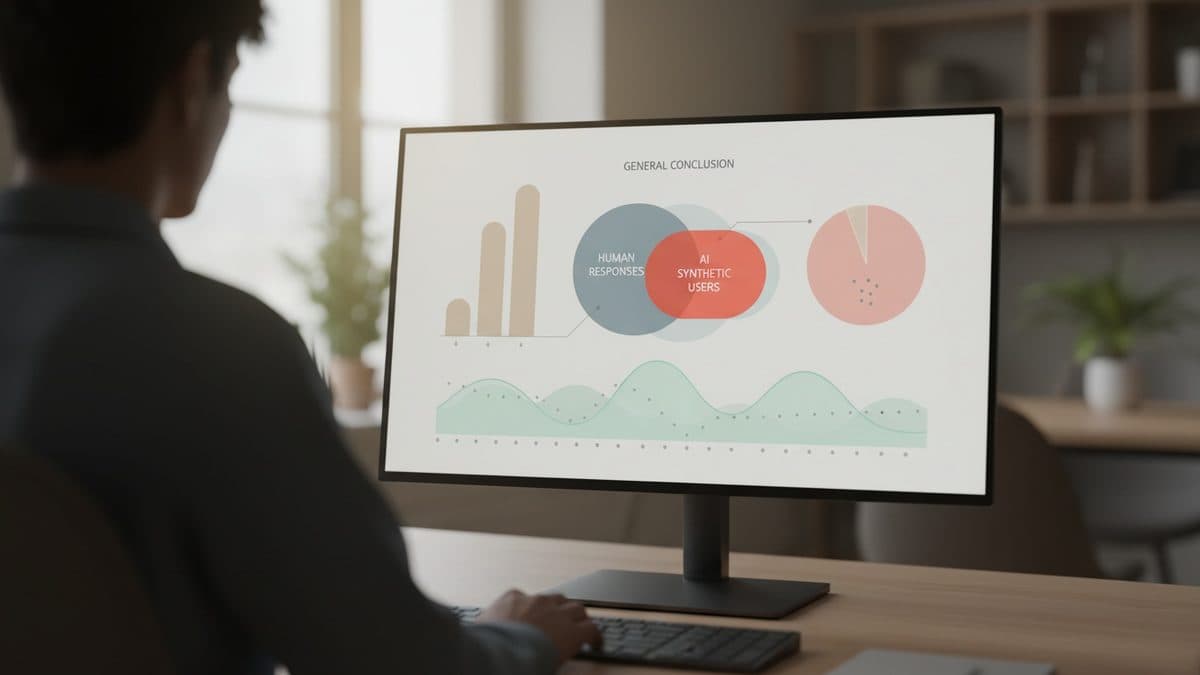
A Nielsen Norman Group study compared 120 synthetic respondents with a survey of 604 human professionals and reached the same overall conclusion, only with much less diversity of responses. The phenomenon has a name: mode collapse.