

Figma's Dev Mode MCP Server becomes a direct bridge between design and code, no screenshots or redlines needed
With Figma's MCP server, AI agents read variables, components, and layout directly from the design file, without needing screenshots, redlines, or manual specs. But this only works if the design system is named with discipline.

For years, the handoff between design and code relied on a familiar ritual: the designer exports a screenshot, notes measurements and colors in a spec (or uses Figma's Inspect), and the developer tries to rebuild that in CSS by looking at the image. Each step of this process loses information. A screenshot doesn't carry the color variable's name, the component hierarchy, or the spacing token that the design system already defines.
Figma's Dev Mode MCP Server, described in the official Dev Mode MCP Server guide, tackles exactly this point. Instead of the AI agent inferring styles from pixels in an image, it reads the file's actual structure: variables, components, auto layout, and layout data extracted directly from Figma. The difference between interpreting a screenshot and consulting the source of truth is what this article explores.
What the MCP Server exposes that a screenshot doesn't
The server runs on the Model Context Protocol, the standard that connects AI agents to external data sources. Connected to the MCP client (VS Code, Cursor, Windsurf, Claude Code, Codex, among others), it exposes tools that an agent can call during an implementation task.
The main capabilities, according to Figma's guide, are:
- Generate code from a frame selected in Figma
- Extract design context (variables, components, layout data) directly into the IDE
- Retrieve resources from FigJam files (flows, diagrams, architecture maps) as context
- Retrieve resources from Make files, useful in the transition from prototype to production
- Maintain consistency with Code Connect, reusing real components from the code instead of recreating them from scratch
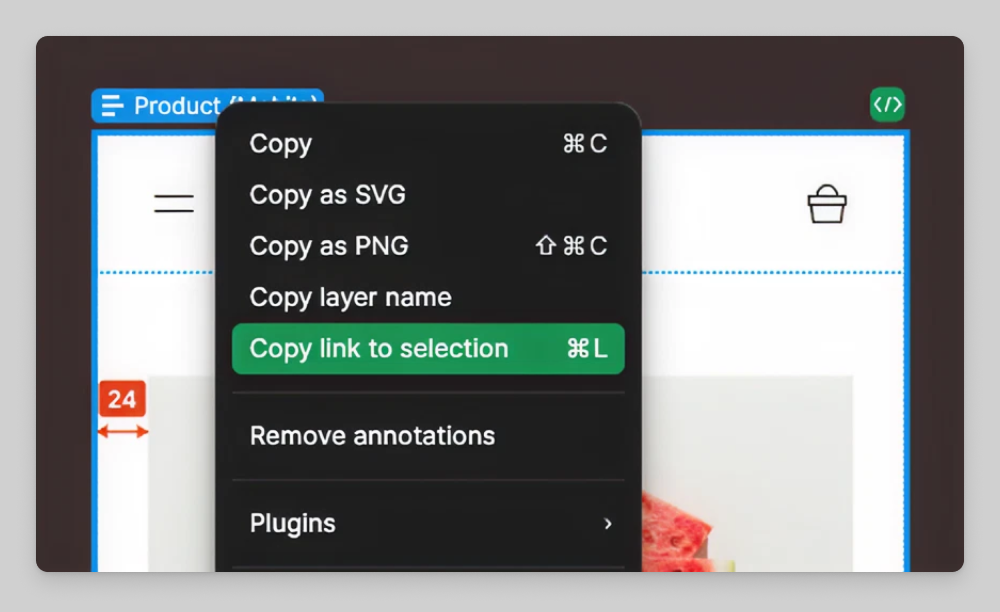
The usage flow is link-based, not image-upload-based. The designer selects a layer in Figma, clicks "Copy link to selection," and pastes that link into the MCP client. The agent extracts the node ID from the URL and queries the server for information about that specific object. No visual interpretation is involved.
The reverse path: UI becoming design
The guide also describes a less obvious feature: capturing the live UI of an application (in production, staging, or localhost) and turning it into editable layers inside Figma Design. This reverses the traditional handoff flow. Instead of design becoming code, rendered code becomes a design artifact, useful for team alignment when implementation has already moved beyond the original spec.
According to the guide, you simply ask the MCP client to start a local server for the application and capture the UI in a new Figma file; the client opens a browser window (or provides a link), and a capture toolbar lets you choose specific pages, elements, or states to send. This feature, however, is only available on the remote server and in select clients.
There's also a bolder opposite path: letting the agent write directly to the Figma canvas, creating and modifying frames, components, variables, and auto layout using the design system as the source of truth. This write capability requires the remote server and, according to the guide itself, is still under continuous improvement.
Why naming becomes a technical requirement, not an aesthetic one
Here's the point that matters to those who design systems, not just those who write code. When the agent reads "variables, components, and layout data" directly from the file, it's reading the names that the design team gave to these things. A variable named Gray/500 or a component named Frame 47 carries zero semantics for a language model trying to map it to a CSS class or a design token.
This changes the quality bar for a design system. Naming a color color-text-secondary instead of Gray 2 is no longer just internal organization of the Figma file: it's the difference between the agent correctly generating className="text-secondary" or inventing a random name that doesn't exist in the codebase. The same applies to components: a button named Button/Primary/Large gives the agent a direct clue about variant and size; a component named Group 23 gives none.
In short: the MCP Server doesn't require a perfect design system to work, but the quality of the agent's output scales directly with the naming discipline of the source file. Files with loose variables, duplicated components with no reuse, and layers with no clear purpose generate generic code, because that's what the model has to work with.
Where Code Connect comes in to close the loop
The guide points to Code Connect as a central piece to prevent the agent from reinventing components that already exist in the code. Instead of generating a new button for every prompt, Code Connect maps the Figma component to the actual component in the repository, and the agent reuses that reference. Without this bridge, each code generation risks slightly diverging from the already implemented design system, creating variations that later need to be hunted down and manually unified.
The "skills" package mentioned in the guide reinforces this point: these are agent instructions, beyond MCP tool calls, that guide how to sequence tasks such as connecting components to Code Connect, generating design system rules aligned with the codebase, and translating designs into production-ready code. Skills don't add new capabilities to MCP, but they reduce the ambiguity of how to use them.
What this replaces and what it still doesn't solve
The MCP Server doesn't replace design review or product decisions; it replaces the manual step of "looking at Figma and retyping values into code." Teams that already maintain a well-documented design system, with named tokens and Code Connect configured, tend to feel the gain immediately: less back-and-forth to confirm exact spacing or color.
Teams with an accumulated design file, with years of duplicated components and inconsistent naming, will likely notice that the agent produces code as confusing as the source file. Figma's guide doesn't promise to resolve design system technical debt; it just changes the channel through which that debt manifests, from manual confusion to automated confusion at scale.
It's also worth noting the feature's stage: Figma's own guide describes the canvas-writing functionality as "under continuous improvement" and potentially paid per use, currently free during the beta period. Teams evaluating adoption now should treat this as a bet on evolution, not as a stable, finished feature.
Access and practical requirements
According to the guide, the remote server is available on all seats and plans; the desktop server requires a Dev or Full seat on paid plans. Figma's own recommendation is to prefer the remote server, which connects to the endpoint hosted at https://mcp.figma.com/mcp, since it offers the broadest set of features, including canvas writing and live UI capture. The desktop server, which runs locally through the Figma desktop app, is geared toward specific use cases for organizations and enterprises.
The list of compatible clients includes VS Code, Cursor, Windsurf, Claude Code, Codex, Claude Desktop, Amazon Q, Gemini CLI, Replit, and others, each with different levels of support for the desktop server, remote server, canvas writing, and skills. Before adopting, it's worth checking Figma's MCP catalog to see which combination of client and feature is available for the team's specific workflow.
Translated from the Brazilian Portuguese original · Read the original
Nielsen Norman Group study maps how power users organize the context that feeds AI agents
Nielsen Norman Group research with advanced Claude users shows that keeping an AI agent's 'memory' organized takes more work than writing prompts, and almost no one does it right.

