
Figma Code Connect: how AI changes the design-dev handoff
Code Connect links real code components to the Figma library and feeds the MCP server with production context. Understand how this reduces rework in the design-engineering bridge and where it still runs into prerequisites.

The oldest point of friction between design and engineering isn't aesthetics: it's translation. The designer delivers a beautiful Button component in Figma, and the dev has to figure out whether that maps to the <Button variant="primary"> that already exists in the design system or to a new variation. In that gap, rework is born, along with inconsistency and the classic "that's not what I designed." Code Connect attacks exactly that gap, and it's worth understanding how, because the promise comes with prerequisites.
According to Figma's official documentation, Code Connect is described as "a bridge between your codebase and Figma's Dev Mode," connecting the components that exist in your repositories to the components in design files. It's not code generation from scratch: it's synchronization between what already exists in production code and what appears in the Figma library.
What changes in the practice of handoff
Before, Figma's Dev Mode showed an auto-generated snippet, a generic approximation of how that element could become code. Useful as a starting point, useless as a source of truth, because it ignored the team's actual design system. With Code Connect via CLI, Dev Mode now displays "real-world code snippets defined by your design system" in place of the default auto-generated code.
The difference is concrete. A Button component in Figma no longer suggests just any styled <div> and instead shows the exact call to your production component, with the right props. The documentation highlights that the CLI maps "properties in Figma to your production component's API," which generates dynamic and precise snippets. In other words: the variant selected in Figma becomes the corresponding prop value in the displayed code.
Two entry points: UI and CLI
Figma offers two paths, with clear trade-offs between effort and precision.
| Criterion | Code Connect UI | Code Connect CLI |
|---|---|---|
| Where it runs | Inside Figma | Terminal, in the local repository |
| Setup | Fast, visual, language-agnostic | Requires template files and planning |
| Audience | Design and eng teams that want something collaborative | Devs who want precision and flexibility |
| Snippet in the Inspect panel | Doesn't show code snippet, only component path and name | Shows real snippets with prop mapping |
| Editing | Editable in the UI itself | Editable only via CLI |
The UI connects to a GitHub repository (or accepts manually typed component paths, for those using another version control system) and is the choice for those who want to get up and running quickly. The CLI, on the other hand, uses template files, a framework-agnostic format that gives full control over the code shown in Dev Mode. It's worth noting an architectural detail: the documentation states that template files are now the recommended format and that framework-specific parsers "are no longer actively maintained," with a migration guide for those still using parser-based files. Anyone adopting this now should start directly with templates.
The two paths aren't mutually exclusive: connections created by the CLI appear in the UI (but can only be edited via the CLI), and the UI supports multiple connections for the same component.
One component, multiple frameworks
This is the gain that usually goes unnoticed and matters for teams with web and mobile products on the same design system. Code Connect's UI supports one-to-many connections: a single Button component in Figma can be mapped, simultaneously, to its implementations in React, SwiftUI, Jetpack Compose, and Vue. Each connection is independent, with its own file path, component name, and instructions.
For a Brazilian company that maintains iOS, Android, and web apps on the same design library, this means the handoff stops being "translate this button for your platform" and becomes "here's the button, exactly as it exists on your platform."
The link with MCP and AI agents
Here's the part that connects Code Connect to the wave of AI-assisted codegen. Both the UI and the CLI feed Figma's MCP server (Model Context Protocol), which exposes connected components to AI tools and code editors. The documentation is explicit: these connections improve the MCP server's ability to "guide AI agents with more precise implementation details, giving them direct references to your real code."
The practical reading, and here's an inference of my own, is that this changes the nature of the AI agent's error. Without Code Connect, an assistant that generates code from a design invents the component's structure and probably ignores your design system. With Code Connect, the same agent receives the file path, the component name, and custom instructions, so it tends to reuse what already exists instead of recreating it. It's the difference between an intern who guesses and one who checked the repository first.
The UI also brings enhanced MCP codegen, which shows code previews based on the actually connected source files, plus a built-in playground to see how different configurations affect connections in real time. The documentation itself makes an honest caveat: the preview is generated in a different context than the MCP server's response, so "the preview code may differ slightly from what an AI agent produces" when it has access to the conversation history and other context.
Where it's not worth it (yet)
Design is an argument, and every argument has a contraindication. Three points deserve attention before pitching Code Connect internally:
- Plan and seat restriction. The documentation is clear: the feature is only available on Organization and Enterprise plans and requires a Full or Dev seat. Teams on the Professional plan simply don't have access, which cuts out a good chunk of smaller startups.
- Mapping maintenance cost. The CLI only delivers value with an existing, mature design system. It requires the devs responsible for the components to work together with designers to map Figma properties to production APIs. Without that partnership, snippets end up generic or outdated, and a wrong mapping is worse than none, because it conveys false confidence.
- Infrastructure limitations. The GitHub connection has rules: GitHub Enterprise Server isn't supported, it's only possible to connect one repository per Figma library file, and you need to be the file owner or an organization admin. Teams with a self-hosted repository will have to fall back on manual mapping.
There's also a detail worth setting expectations for: components connected only via the UI don't show code snippets in the Inspect panel, just the component's name and path, plus the AI previews. Those who want the full snippet in Inspect need the CLI. In other words, the UI is great for giving context to the AI agent, but it doesn't replace the CLI when the goal is for the dev to read the code directly in Inspect.
How I would bring this to a team
The path I'd propose in a typical project starts small: use the UI to connect the five or six most reused components (button, input, card, badge, modal) and measure whether the AI agent starts reusing the design system instead of recreating it. If the gain shows up, then it's worth investing in the CLI with template files for the highest-traffic components, involving the devs who own the design system in the prop mapping. Accessibility enters this mapping as part of the definition of done: the custom instructions per component are the right place to record aria, focus, and contrast requirements, so the code suggested to the agent is born accessible, instead of becoming debt in code review.
The real value of Code Connect isn't saving lines of code. It's closing the translation gap that has always existed in handoff, turning the design system into a single source of truth that designers, devs, and AI agents consult in the same way.
Source 1: Figma's Official Documentation - Code Connect (https://www.figma.com/developers/code-connect)
Translated from the Brazilian Portuguese original · Read the original
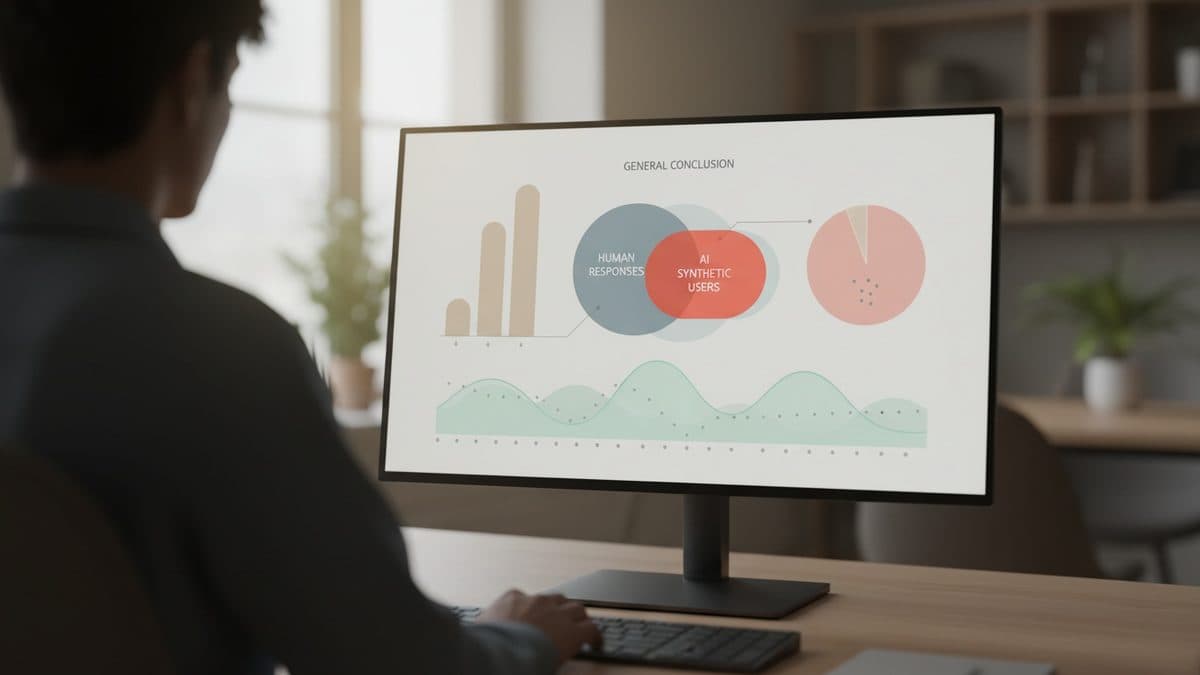
Synthetic AI users repeat human conclusion, but with less variation
A Nielsen Norman Group study compared 120 synthetic respondents with a survey of 604 human professionals and reached the same overall conclusion, only with much less diversity of responses. The phenomenon has a name: mode collapse.