

Figma Dev Mode MCP Server exposes nodes, variables, and tokens to AI agents
The official Figma Help Center guide details what Copilot, Claude, and Cursor can read and write inside design files, and what that changes (and doesn't yet change) in the handoff with engineering.

The Figma Dev Mode MCP Server is no longer just a roadmap promise: the Figma Help Center has published a detailed guide ("Guide to the Figma MCP server") explaining exactly which tools the server exposes to MCP clients like GitHub Copilot, Claude Code, Cursor, and Windsurf. The document is the most complete reference to date on what an AI agent can now see inside a Figma design file, and it's worth breaking down node by node what this means in practice for those handling the handoff between design and code.
What the server exposes, node by node
According to the guide, the MCP server provides access to a specific set of data behind the canvas: variables, components, layout data (auto layout, measurements, frame hierarchy), and, when configured, the Code Connect links between a Figma component and its equivalent in your repository. This is different from "exporting a screenshot of the screen": the agent receives the semantic structure of the design, not a screenshot to guess from.
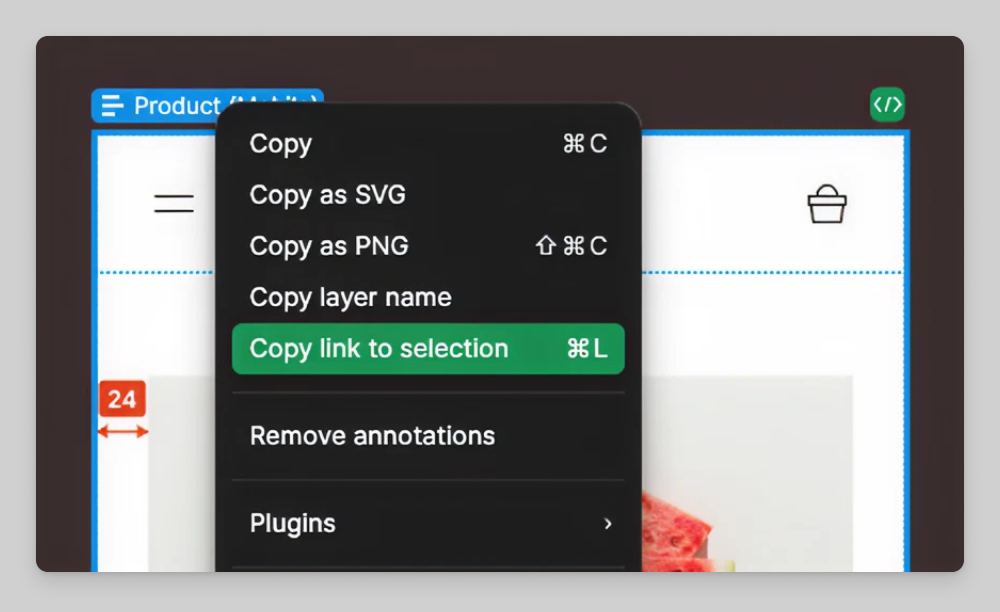
The access flow is link-based, not a free search across the entire file. The guide describes the step by step: you select a layer or frame in Figma Design, right-click, and choose "Copy link to selection," paste that URL into your MCP client, and ask it to implement the design. The client doesn't open the URL like a regular link; it extracts the node ID contained in it, which is the identifier the MCP server uses to know exactly which object to return. In other words, the agent's access scope is defined by you, node by node, at the moment you copy the link, not by broad permission over the entire file.
Two ways to run the server, with different consequences
The guide distinguishes two forms of connection. The remote server (a hosted endpoint at https://mcp.figma.com/mcp) is Figma's own preferred option and is available on any seat, across all plans. The desktop server runs locally through the Figma app and requires a Dev or Full seat on paid plans; the documentation is explicit that it is aimed at "specific use cases for organizations and enterprises" and that, for the broadest set of features, the recommended path is the remote one.
This difference matters because not every feature is available in both modes. The ability to write back to the canvas (write to canvas), for example, is restricted to the remote server. It is the tool that lets the agent create and modify frames, components, variables, and auto layout directly in the Figma file, using your design system as the source of truth, according to the official text. This reverses the traditional flow: instead of design always becoming code, code (or the prompt) can also become design.
Capturing live UI and bringing it into Figma
One of the most specific tools in the guide is the one that turns an app's or site's live UI (production, staging, or localhost) into editable layers inside Figma Design. The described flow is conversational: you ask the MCP client to "start a local server for the app and capture the UI in a new Figma file," the client opens a browser window (or provides a link), you use a capture bar to select pages, elements, or states, and at the end you receive the link to the generated Figma file. The guide makes clear that this feature requires the remote server and today is only supported by selected clients, which is a real limitation: not every MCP editor compatible with Figma already has this capability enabled.
The use case here isn't design from scratch, it's reverse auditing: taking what's already in production and bringing it back for exploration, alignment, and visual refinement, closing a loop that today usually depends on screenshots and manual annotation.
Skills: the layer that decides what to do with the tools
The guide clearly separates tools from skills. Tools are the individual calls the MCP server exposes (fetching design context, generating code, writing to the canvas). Skills are instruction packages that guide the agent on when and in what order to use those tools, for tasks such as connecting Figma components to code components via Code Connect, generating design system rules aligned with your own codebase, or translating a design into production-ready code. The text is explicit: "Skills don't replace MCP connections or add new MCP capabilities. They reduce setup and guesswork by packaging recommended workflows into reusable instructions." In other words, without a well-written skill, the agent has access to the data but doesn't necessarily know which sequence of calls produces a useful result, and the guide notes that some of these skills already circulate through the Figma Community and a contributions repository on GitHub.
Code Connect: the piece that keeps the agent from reinventing the component
The retrieve design context tool, which pulls variables, components, and layout data straight into your IDE, becomes noticeably more useful when combined with Code Connect. Without that link configured between the Figma component and the actual component in your repository, the agent has the visual structure but doesn't know that button already exists as <Button variant="primary"> in your design system, and risks generating a new, redundant implementation, or worse, one that diverges from already-validated accessibility and naming standards. That's why the guide itself treats Code Connect as part of the package, not as a separate advanced item: it's what guarantees that "the generated code not only matches your design system, but also matches your design" in fact.
What the guide doesn't promise: accessibility and FigJam/Make take a back seat
It's worth noting what the document doesn't cover in the same detail. The tools for retrieving resources from FigJam and from Make files (prototypes) are described in just a few lines, as ways to bring diagrams, flows, or early-stage architecture maps into the code generation flow, but without the same level of practical example given to the main design context flow. And, from the standpoint of those who work with UX, the guide doesn't mention any exposure of accessibility annotations, contrast, semantic screen-reading hierarchy, or focus states as part of the data the MCP server extracts. What the agent receives is layout structure and visual variables, not the metadata that today normally lives in separate accessibility auditing plugins. This means the MCP handoff speeds up the translation of layout into code, but doesn't replace the manual check (or one automated by another tool) that the generated component is keyboard-operable, has adequate contrast, and exposes the right ARIA attributes. Anyone who adopts the MCP server as the sole link between design and implementation risks shipping to production the exact same accessibility problems that already existed in the original file, only faster.
Who it's worth it for today
Remote access is available free of charge during the beta period, according to the guide itself, which also warns that the feature "will eventually be paid, usage-based." Teams with a mature design system and Code Connect already configured tend to extract the greatest gain, because the agent reuses real components instead of recreating them from scratch. Teams without that foundation will experience the MCP server as a somewhat more structured layout-reading tool than an image export, useful, but without the leap in consistency the guide promises when the design system is treated as the source of truth.
Translated from the Brazilian Portuguese original · Read the original
Material 3 Expressive changes motion and color tokens: what to review in Figma
Material Design's official documentation details how M3 Expressive's physics-based motion tokens, more vibrant palette, and new shapes affect accessibility and design system handoff in Figma.